Complete Audit
Once elements are created and auditee has been interviewed then you can consider audit is complete. Click on the Complete button to complete the audit.
NOTE: You can switch to Perform mode anytime by clicking on the Perform button.
In completed mode, you can add new elements and view all ones but cannot make any changes in them as well as positive remarks. You need to switch back to Perform mode to make any changes in elements or positive remarks.
Close Elements
Element closing can be done while performing an audit or after completion of the audit. We can consider audit completion as a milestone.
Each finding must be closed to close the audit. Ensure all mandatory sections are filled to close the finding.
- Click on the Close Finding to close the finding.
- Confirm by clicking Confirm.
Element status will be changed to Closed.
Reopen Element
You have to expand the element to reopen.
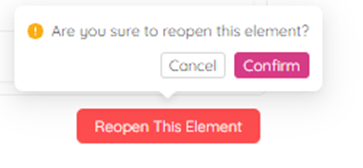
- Click on the Reopen This Element button to reopen closed element.
- Confirm by clicking Confirm.
Once open elements have been identified within the scheduled close date on each element, the auditee can begin to work on closing them as described in the audit perform section. The open or closed status of each element is reflected in both the element itself and the audit status, as shown below.

NOTE: If the auditee is not an ETHOS user, they can provide the auditor with the required follow-up documents and comments to update notes. The auditor can verify follow-up documents and put notes to close the element.